-
×
 Windows Server 2016 RDS DEVICE CAL 1 PC – Product Key
1 × $13.99
Windows Server 2016 RDS DEVICE CAL 1 PC – Product Key
1 × $13.99 -
×
 Windows Server Essentials 2019 Global
1 × $31.50
Windows Server Essentials 2019 Global
1 × $31.50 -
×
Microsoft Windows Server 2019 USER CAL (1 Device) – Product Key
1 × $11.99
-
×
Windows Server Essentials 2016 Global
1 × $11.99
 Windows Server Essentials 2019 Global
  Microsoft Windows Server 2019 USER CAL (1 Device) – Product Key
  Windows Server Essentials 2016 Global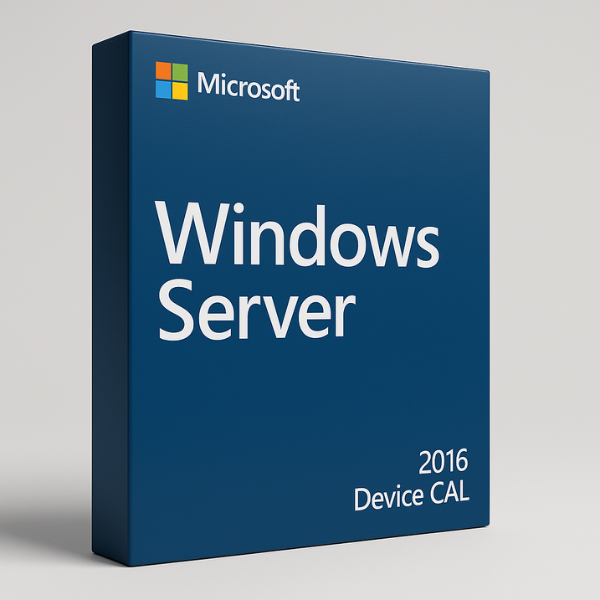

What is Windows Server 2016?
Windows Server 2016 is a system made by Microsoft. It helps companies run apps, save data, and manage work. It is good for small and large businesses. So, you should buy Windows Server 2016 Device CAL – Product Keys
Easy Features for Better Work
1. Run More with Hyper-V
Hyper-V lets you make many mini-computers (virtual machines) on one big computer. This saves space and money. You can run old and new apps side by side.
2. Stay Safe with Better Security
Windows Server 2016 helps keep your data safe. It uses tools like Windows Defender and Shielded Virtual Machines. These help stop hackers and keep your info private.
Why Use Windows Server 2016?
This system makes your work faster and safer. You can use fewer machines, spend less, and keep everything running well. It’s simple, smart, and made for growing businesses.
What Are Device CALs?
A Client Access License (CAL) is a license required for every user or device that accesses a Windows Server. Specifically, a Device CAL is assigned to a specific device, such as a computer, tablet, or mobile phone. This type of license allows multiple users to access the server from the same device without needing additional CALs.
What is a Device CAL?
A Device CAL is a license that permits a specific device to connect to Windows Server 2016. The key advantage of this license is that any number of users can access the server from the licensed device without requiring additional licenses. For example, in an office environment with multiple employees sharing the same workstation, one Device CAL is sufficient for all users who use that device.
Device CAL vs User CAL
There are two main types of CALs: User CALs and Device CALs.
-
User CALs: These are assigned to individual users and allow them to access the server from any device.
-
Device CALs: These are assigned to devices, allowing any number of users to access the server from that device.
How Do Device CALs Work in Windows Server 2016?
Device CALs allow businesses to provide server access to multiple users without needing to assign a separate license for each individual. This model is ideal for environments where employees share devices, such as in a call center, retail store, or manufacturing facility.
Licensing Model for Device CALs
In the Device CAL licensing model, each device that accesses the Windows Server 2016 environment requires a license. This means that if multiple employees share the same device, they do not need separate User CALs. Instead, the business only needs to buy one Device CAL for that device.
Assigning Device CALs to Devices
Once a Device CAL is purchased, it must be activated and assigned to a specific device within the Remote Desktop Licensing Manager. This software allows administrators to easily assign, track, and manage Device CALs across the business.
Why Choose Device CALs for Your Organization?
There are several reasons why Device CALs might be the ideal choice for your organization.
Ideal for Shared Device Environments
Device CALs are perfect for environments where devices are shared by multiple users. For example, in a call center where multiple employees use the same workstation, Device CALs allow any employee to log in and access the server from that workstation without the need for multiple User CALs.
Cost-Effectiveness
For businesses that have many employees sharing a small number of devices, Device CALs can be much more cost-effective than User CALs. Since only one Device CAL is required per device, it can significantly reduce the overall cost of licensing.
How to Install and Activate Device CALs for Windows Server 2016
Setting up Device CALs for Windows Server 2016 is a straightforward process that requires the following steps:
System Requirements
Before installing Device CALs, ensure that your system meets these minimum requirements:
-
Processor: 1.4 GHz 64-bit processor
-
Memory: 2 GB RAM (4 GB recommended)
-
Storage: 160 GB of free disk space
-
Network: Ethernet adapter for local network connectivity
Installation Process
-
Prepare Installation Media: Download the installation files or use a DVD/USB to install Windows Server 2016.
-
Install Windows Server 2016: Follow the on-screen instructions to complete the installation process.
-
Enable Remote Desktop Services (RDS): In Server Manager, go to the Add Roles and Features wizard and enable RDS.
-
Activate Device CALs: After enabling RDS, use the Remote Desktop Licensing Manager to enter the Device CAL product key and activate it.
Activating Device CALs
Once activated, the Device CALs will be assigned to the designated devices. After activation, any employee who uses that device can access Windows Server 2016 remotely.
Managing Device CALs in Windows Server 2016
Managing Device CALs is crucial to ensure compliance and proper use across your organization.
Tracking CAL Usage
Using Remote Desktop Licensing Manager, you can easily monitor the number of Device CALs in use. This tool will show you if you are reaching your licensing limits and whether additional licenses are needed.
Troubleshooting Device CAL Issues
If you encounter issues with Device CALs, here are some common problems and solutions:
-
Incorrect Activation: Double-check that the correct product key is being used.
-
Exceeded CAL Limit: Ensure that your number of Device CALs matches the number of devices in use.
Pricing and Licensing for Device CALs
The price of Device CALs can vary based on the vendor, the number of licenses purchased, and any ongoing promotions. Typically, Device CALs are sold in packs, and each device requires its own CAL.
Why SoftLicenseKey is the Best Place for Device CALs
At SoftLicenseKey.com, we offer genuine Microsoft product keys at the cheapest prices. We are committed to providing high-quality products and excellent customer support. Our platform is designed to offer businesses an easy and secure way to purchase Device CALs for Windows Server 2016.
Cheapest Prices for Device CALs
Unlike other sites, SoftLicenseKey offers the most competitive prices for Device CALs. You’ll find that we provide genuine product keys that are fully licensed, ensuring that your business stays compliant without breaking the bank.
Conclusion
In conclusion, Device CALs for Windows Server 2016 offer a flexible, cost-effective licensing option for businesses with shared devices. Whether you’re running a call center, a retail store, or any other shared environment, Device CALs provide a straightforward way to ensure your business stays compliant with Microsoft’s licensing model. By purchasing from SoftLicenseKey, you can get the best prices and ensure your business is equipped with genuine product keys.
Frequently Asked Questions (FAQs)
-
What is a Device CAL in Windows Server 2016?
-
A Device CAL allows a specific device to connect to Windows Server 2016, and any user can access the server from that device.
-
-
How do I install Device CALs?
-
After installing Windows Server 2016, you can activate Device CALs through Remote Desktop Licensing Manager.
-
-
What’s the difference between Device CALs and User CALs?
-
Device CALs are assigned to devices and can be used by any number of users, while User CALs are assigned to individual users and can be used across any device.
-
-
Why should I buy Device CALs from SoftLicenseKey?
-
SoftLicenseKey offers genuine Microsoft product keys at the cheapest prices, along with reliable customer support and fast delivery.
-
-
Can I add more Device CALs later?
-
Yes, you can always purchase additional Device CALs as your business grows, ensuring that your server access remains compliant.
-
This article has provided a complete guide to Windows Server 2016 Device CALs, from installation to pricing. By purchasing from SoftLicenseKey, you ensure your business gets the best deals on genuine Microsoft product keys, allowing you to stay compliant and cost-effective in your IT operations.
Related products
-88%
Original price was: $500.99.$59.99Current price is: $59.99.
-89%
-90%

Original price was: $99.99.$9.99Current price is: $9.99.
-91%

Original price was: $99.99.$8.99Current price is: $8.99.
-91%
Original price was: $199.99.$18.99Current price is: $18.99.
-89%

-88%

-89%