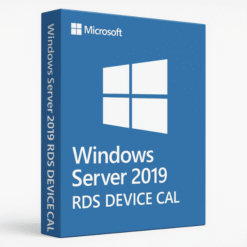
 Windows Server 2019 RDS DEVICE CAL – Product Key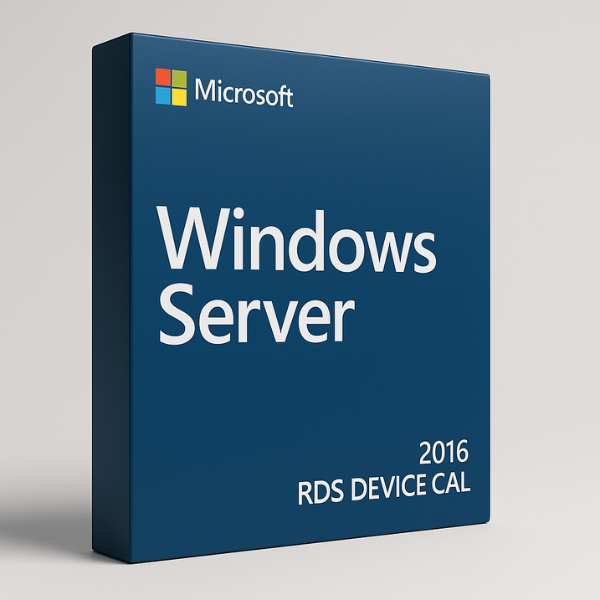

What is Windows Server 2016 RDS?
Windows Server 2016 RDS (Remote Desktop Services) is a robust solution designed to enable businesses to provide secure remote access to applications and desktops hosted on a central server. With RDS, employees can access corporate resources from virtually any device, whether in the office, at home, or on the go. This is particularly valuable in today’s business world, where remote work and flexible access to data are essential.
Key Features of Windows Server 2016 RDS
Windows Server 2016 provides a range of features designed to simplify IT management while offering robust security and scalability:
-
Virtualization with Hyper-V: Virtualization is one of the key features of Windows Server 2016. It allows businesses to create multiple virtual machines on a single physical server, which increases resource efficiency and reduces hardware costs.
-
Enhanced Security: Windows Server 2016 comes with enhanced security features like Shielded Virtual Machines, Windows Defender for antivirus protection, and Just Enough Administration (JEA), which ensures only authorized users can perform specific administrative tasks.
Virtualization with Hyper-V
Windows Server 2016’s Hyper-V virtualization platform is a game-changer for businesses. With Hyper-V, organizations can create and manage multiple virtual machines (VMs) on a single physical server. RDS takes advantage of this by providing users with virtual desktops, which can be accessed from any device, making it ideal for companies with a flexible or remote workforce.
Enhanced Security
Windows Server 2016 includes a wide range of security features designed to protect sensitive data, including Shielded VMs, Windows Defender ATP, and more. These features ensure that businesses are protected from cyberattacks, unauthorized access, and data breaches, even in remote access scenarios.
What is a Device CAL?
A Client Access License (CAL) is required for every user or device that accesses a Windows Server 2016 system. A Device CAL is a type of license that allows a specific device (e.g., a desktop, laptop, or tablet) to access the server. The advantage of Device CALs is that they are tied to the device, not the user. This means that multiple users can access the server from the same device without needing additional licenses.
What is a Device CAL?
A Device CAL grants a specific device the ability to connect to Windows Server 2016. This means that anyone who uses that device, whether they are working in the office, at home, or remotely, can access the server. This model is ideal for businesses where multiple employees share the same device, such as in a call center, warehouse, or kiosk environment.
Device CAL vs User CAL
Understanding the difference between Device CALs and User CALs is key when deciding which licensing model best suits your organization:
-
User CALs are assigned to specific users, giving them the flexibility to access the server from any device.
-
Device CALs are tied to specific devices, and any user who uses that device can access the server. This is ideal for shared devices in public spaces or environments where multiple employees use the same machine.
How Do Device CALs Work in Windows Server 2016 RDS?
Device CALs work by providing access to the server for a specific device, regardless of how many users use that device. This licensing model is particularly useful in scenarios where several employees share the same workstation or device.
Licensing Model for Device CALs
The Device CAL licensing model is straightforward: one Device CAL is required for each device that will access the Windows Server 2016 environment. Unlike User CALs, which are assigned to users, Device CALs are assigned to devices, making it easier to manage access in environments with shared devices.
Assigning Device CALs to Devices
Once Device CALs are purchased, administrators can assign them to devices using Remote Desktop Licensing Manager. This ensures that the devices are licensed to access the Windows Server 2016 system. The process is simple and allows IT teams to easily track and manage licenses.
Why Choose Device CALs for Your Organization?
Device CALs offer a variety of benefits, especially in environments where devices are shared among multiple users. Here’s why you should consider choosing Device CALs for your organization:
Cost-Effective for Shared Device Environments
Device CALs are the best choice for environments where several users share a single device. For example, in a call center, multiple employees may use the same workstation in shifts. With Device CALs, you only need to purchase one license for that device, rather than buying a separate User CAL for each employee.
Flexibility and Simplicity
Managing Device CALs is simpler in environments with shared devices. You won’t need to worry about assigning and managing multiple licenses for users who access the same device. Once a Device CAL is assigned to a device, anyone who uses that device can access the server.
How to Install and Activate Device CALs for Windows Server 2016 RDS
Installing and activating Device CALs in Windows Server 2016 is a simple process. Follow these steps to get started:
System Requirements
Before you install Device CALs, make sure your system meets the following requirements:
-
Processor: 1.4 GHz 64-bit processor
-
Memory: 2 GB RAM (4 GB recommended)
-
Storage: 160 GB or more of hard disk space
-
Network: Ethernet adapter for network connectivity
Installation Process
-
Prepare Installation Media: Download or use a bootable USB stick to install Windows Server 2016.
-
Install Windows Server 2016: Follow the on-screen instructions to install the server.
-
Enable Remote Desktop Services: Use Server Manager to add Remote Desktop Services (RDS) as a role.
-
Activate Device CALs: Use Remote Desktop Licensing Manager to input the Device CAL product key and activate the licenses.
-
Assign Device CALs: After activation, assign the Device CALs to the appropriate devices.
Activating Device CALs
To activate Device CALs, simply enter the product key in the Remote Desktop Licensing Manager. After activation, the Device CALs will be linked to the devices in your organization, allowing users to access the server.
Managing Device CALs in Windows Server 2016 RDS
Once Device CALs are installed, it’s important to manage them effectively to ensure compliance and smooth operations.
Tracking CAL Usage
With Remote Desktop Licensing Manager, you can monitor the number of Device CALs in use. This helps ensure that your organization is not exceeding its licensing limits.
Troubleshooting Device CAL Issues
Common issues with Device CALs include:
-
Incorrect activation: Double-check that the correct product key is used during activation.
-
Exceeded CAL limits: Ensure that the number of Device CALs matches the number of devices in your organization. If needed, purchase more licenses.
Pricing and Licensing for Device CALs
The cost of Device CALs depends on factors such as the number of devices and the vendor from which you purchase them.
Why SoftLicenseKey is the Best Place for Device CALs
At SoftLicenseKey.com, we offer genuine Microsoft product keys at the cheapest prices. Whether you need one license or hundreds, we have you covered. Our platform ensures a fast and secure transaction, with 24/7 customer support to help you with any questions.
Cheapest Prices for Device CALs
SoftLicenseKey provides the most affordable Device CALs in the market. Our competitive pricing ensures that your business can stay compliant with Microsoft licensing requirements while keeping costs low.
Conclusion
Windows Server 2016 RDS Device CALs provide a flexible and cost-effective solution for businesses that need to manage multiple users on shared devices. By purchasing genuine Microsoft licenses from SoftLicenseKey, you ensure that your business stays compliant with licensing regulations while saving money. SoftLicenseKey offers the cheapest prices and exceptional customer service to make your licensing experience as smooth as possible.
Frequently Asked Questions (FAQs)
-
What is a Device CAL in Windows Server 2016?
-
A Device CAL is a license assigned to a specific device, allowing multiple users to access the server from that device.
-
-
How do I install Device CALs in Windows Server 2016?
-
After installing Windows Server 2016, use Remote Desktop Licensing Manager to activate and assign Device CALs.
-
-
What’s the difference between User CALs and Device CALs?
-
User CALs are tied to individual users, while Device CALs are assigned to specific devices.
-
-
Why should I buy Device CALs from SoftLicenseKey?
-
SoftLicenseKey offers genuine product keys at the lowest prices and provides exceptional customer support.
-
-
Can I upgrade or add more Device CALs as my business grows?
-
Yes, you can purchase additional Device CALs anytime to accommodate your business’s growth and licensing needs.
-
This comprehensive guide covers everything you need to know about Windows Server 2016 RDS Device CALs, from installation and activation to pricing and management. By purchasing from SoftLicenseKey, you can enjoy genuine Microsoft product keys at the cheapest prices.
Related products